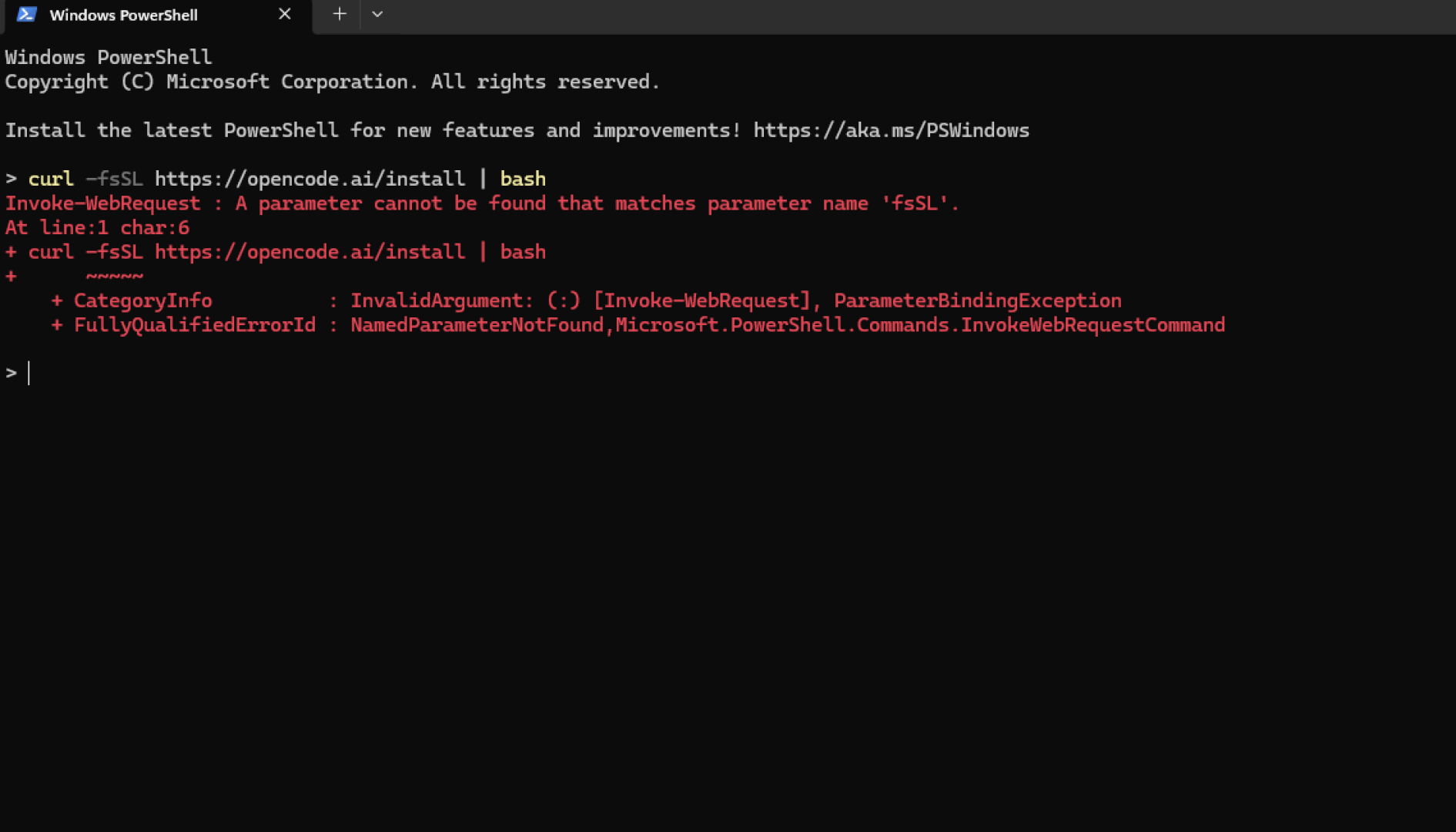
Trying to install OpenCode AI on Windows but getting errors like this?
Invoke-WebRequest : A parameter cannot be found that matches parameter name 'fsSL'
or:
The '<' operator is reserved for future use.
Don’t worry — this issue usually happens because the installation command is designed for Linux/macOS terminals, not the default Windows PowerShell.
In this guide, you’ll learn:
- Why the error happens
- How to install Git Bash on Windows
- How to properly install OpenCode AI
- Common troubleshooting tips
Why Does OpenCode AI Fail in PowerShell?
The official OpenCode AI installation command is:
curl -fsSL https://opencode.ai/install | bash
This command works normally on:
- Linux
- macOS
- WSL
- Git Bash
The problem is that on Windows PowerShell, curl is not the real Linux curl command. It’s actually an alias for:
Invoke-WebRequest
As a result, PowerShell tries to interpret Linux shell syntax as PowerShell syntax, which causes installation errors.
Solution: Install Git Bash First
The easiest solution is using Git Bash.
Git Bash provides a lightweight Linux-like terminal environment on Windows, allowing commands like curl, bash, and shell scripts to run properly.
Step 1 — Download Git Bash
To get Git Bash, install Git for Windows first.
Download it here:
Step 2 — Install Git Bash
Run the Git for Windows installer.
For most users, the default installation settings are perfectly fine.
After installation:
- restart your terminal
- or restart VS Code if it’s currently open
Step 3 — Open Git Bash
There are several ways to open Git Bash.
Method 1 — From the Start Menu
Press:
Windows Key
Then search for:
Git Bash
Open the application.
Method 2 — Right Click Inside Your Project Folder
Inside your project folder:
- right click
- select:
Open Git Bash here
This is usually the fastest workflow for development.
Step 4 — Install OpenCode AI
Once Git Bash is open, run the following command:
curl -fsSL https://opencode.ai/install | bash
Since the command is now running inside Git Bash, the installation process should work correctly.
How to Verify the Installation
After installation, run:
opencode --version
If you see a version number, OpenCode AI has been installed successfully.
Common Troubleshooting
1. curl: command not found
Git Bash usually includes curl by default.
If the error still appears:
- reinstall Git for Windows
- make sure Git Bash components are included
2. bash: command not found
This usually means the command is still running inside:
- PowerShell
- CMD
Make sure you are using Git Bash.
You can identify Git Bash if the terminal shows:
MINGW64
inside the terminal window.
3. opencode: command not found
Try:
- closing Git Bash
- opening the terminal again
- rerunning the installation command
4. Node.js Not Installed
Some AI development tools require Node.js.
Check your Node.js version with:
node -v
If Node.js is missing, install it from:
Bonus: Use Git Bash in VS Code
If you use Visual Studio Code, you can make Git Bash your default terminal.
Open the Command Palette:
Ctrl + Shift + P
Search for:
Terminal: Select Default Profile
Select:
Git Bash
From now on, VS Code terminals will automatically use Git Bash.
Fix PATH Environment on Windows
Sometimes after installation, the opencode command is not recognized in Terminal or PowerShell.
If you see an error like this:
'opencode' is not recognizedit means the PATH environment variable has not been added yet.
How to Add OpenCode to PATH
Open:
Environment VariablesThen edit:
PathAdd the following directory:
C:\Users\USERNAME\.opencode\binReplace USERNAME with your Windows username.
After that:
- Click OK
- Restart Terminal or VSCode
- Run the command again:
opencodeFinal Thoughts
Most OpenCode AI installation errors on Windows are caused by running Linux commands directly inside PowerShell.
The easiest and safest solution is:
- Install Git Bash
- Run the OpenCode AI installer from Git Bash
Once Git Bash is ready, installing OpenCode AI becomes much smoother and avoids most terminal compatibility issues.