It Started with a Simple Idea
I had a simple thought:
“What if I could create a mini educational game… without building everything from scratch?”
Not just for fun, but something that could actually:
- help kids learn
- be simple and safe
- and maybe… turn into a digital asset
So instead of opening a code editor first, I started with something else:
👉 a prompt
---
🧠 Step 1 — Defining the Game Idea
I didn’t overcomplicate it.
I just picked something basic:
- Topic: Math (addition)
- Target: Kids (5–10 years old)
- Goal: Make learning feel like a game
The idea was simple:
a tap-based quiz game where kids choose the correct answer
---
⚙️ Step 2 — Turning the Idea into a Prompt
This is where things get interesting.
Instead of writing code manually, I structured the idea into a prompt like this:
- Game concept
- Gameplay mechanics
- Game system
- UI/UX
- Technical requirements
Basically, I “explained the game” to AI like I would to a developer.
---
🎯 Step 3 — Using a Master Prompt
To make it reusable, I created a general template.
You are a senior JavaScript game developer and educational experience designer.

Create a fun and engaging educational mini game using HTML5 Canvas and vanilla JavaScript.

Game concept:
- Title: [GAME TITLE]
- Target audience: [kids / teens / general]
- Topic: [math / memory / language / quiz / logic / etc]
- Learning objective: [what user will learn]

Gameplay:
- Core mechanic: [tap / drag / match / type / choose answer]
- Game type: [quiz / puzzle / reaction / memory / sorting]
- Goal: [what player needs to achieve]
- Lose condition: [optional or none]

Game design:
- Keep it simple and intuitive
- Make it rewarding and fun
- Encourage repetition and learning

Game systems:
- Score system based on performance
- Feedback system (correct / incorrect)
- Difficulty progression

UI/UX:
- Clean layout
- Easy instructions
- Visual feedback

Technical requirements:
- Single HTML file
- Use Canvas
- requestAnimationFrame loop

Features:
- Start screen
- Gameplay screen
- Game over screen

Output:
- Full working HTML file
- No explanation
---
Step 4 — Creating the Actual Game Prompt
Then I made a more specific version:
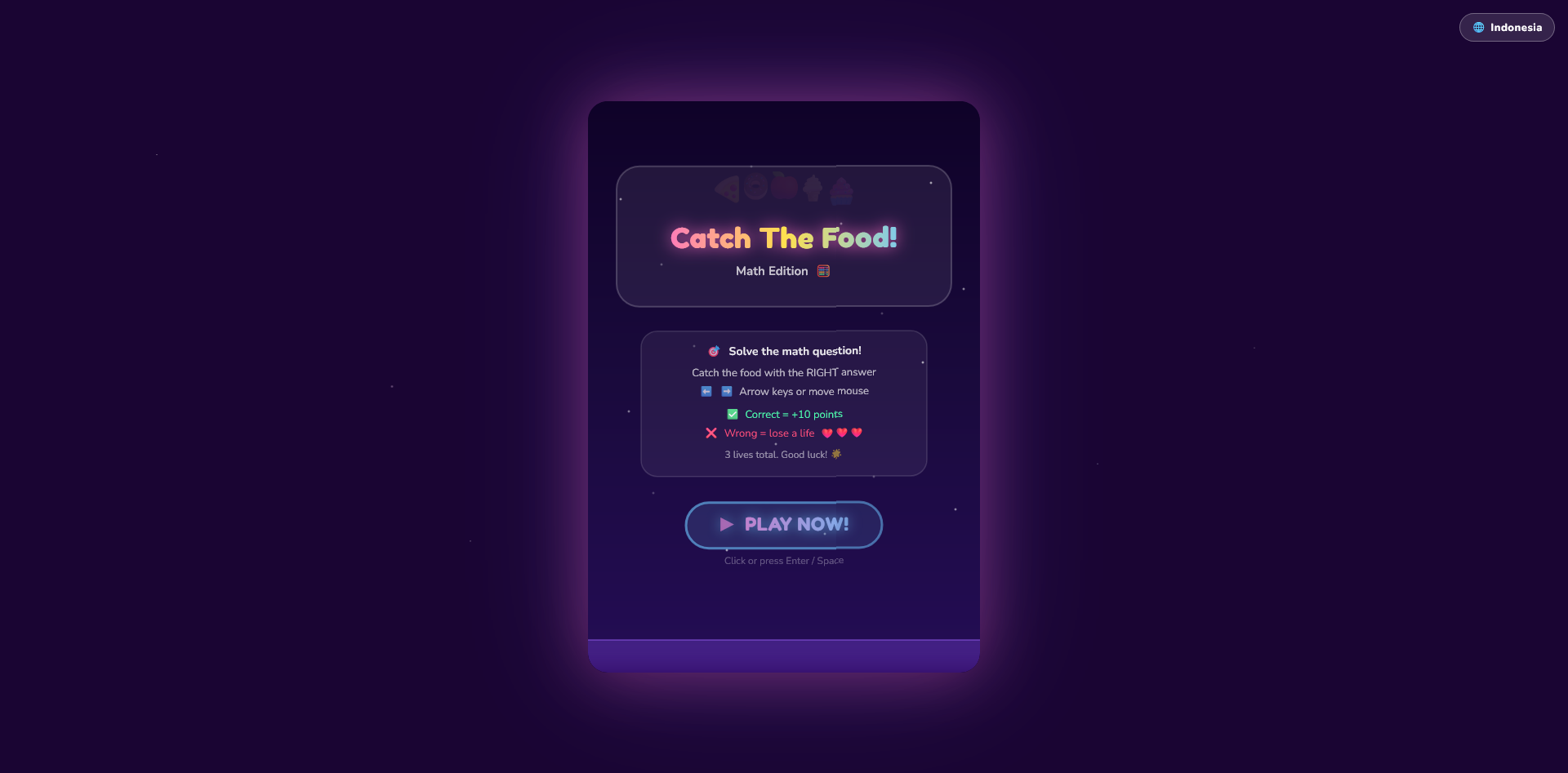
Create a simple math quiz mini game for kids using HTML5 Canvas.

- Show random addition questions
- Provide 3 answer choices
- Tap correct answer to score
- Wrong answer = game over

Use emoji for visuals

Include:
- Start screen
- Game screen
- Game over screen
---
Step 5 — Let AI Generate the Game
This is the fun part.
I dropped the prompt into AI… and it generated a working mini game.
No setup. No framework. Just:
- 1 HTML file
- Canvas rendering
- Fully playable
Honestly, that’s kind of crazy.
What I Realized
This is not just about making one game.
It’s about building a system.
- 1 prompt → 1 game
- 1 template → many variations
- many games → traffic opportunities
Final Thoughts
You don’t need to be a full-time game developer.
You just need to:
- understand the idea
- structure the prompt
- let AI do the heavy lifting
Simple, but powerful.
And honestly… we’re just getting started.
Preview : Check on My Lab